Automatic Backup & New CSV format
Back up, recover, and restore data from your account and create copies of previous versions

Daily Backups + CSV Export
Back up, recover, and restore data from your account and create copies of previous versions of your collections, bookmarks, tags, or highlights in portable HTML or new easily readable CSV format.
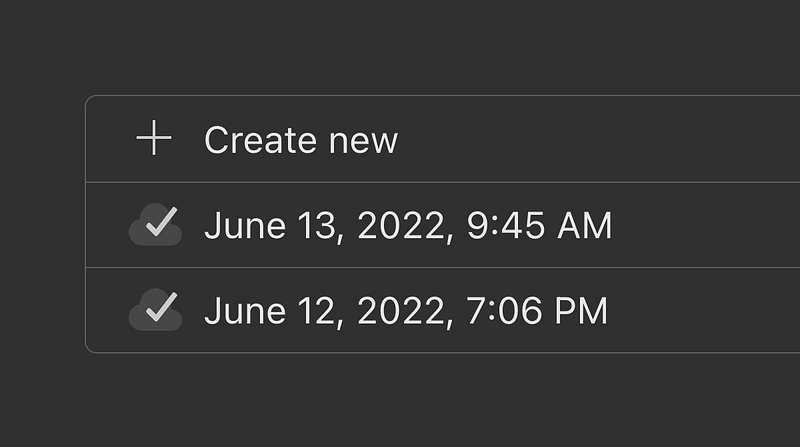
Create or download a snapshot of your data anytime in settings. Users with Pro plan don’t need to worry about creating them manually, they are generated daily automatically (on days you made any changes).
You can store up to 30 backups on your account, older backups are overwritten and deleted.
Downloading a backup
- Visit settings page and go to Backups tab
- Click HTML or CSV next to any of the daily backups. This will start a download of a file
You can also click + Create New at the top of your backups tab to manually create a backup of all of your collections.
HTML file best suited to transfer your bookmarks to a browser or other bookmarking services. This format is supported by almost any browser.
CSV on the other hand is particularly useful to work with in Microsoft Office or Google Sheets.
Both of the file formats are supported to import back to Raindrop.
Restoring a backup
- Visit settings page and go to Import tab
- Choose the previously downloaded file from your computer that corresponds to the backup you want to restore
All the collections, bookmarks, tags, and highlights from the backup will be added to your account.
Limitations
- Unfortunately for the moment files you upload from your device (images, videos and documents) are not included in backups
- You can’t limit backup to some specific collection
Both of the problems will be addressed in the near future.